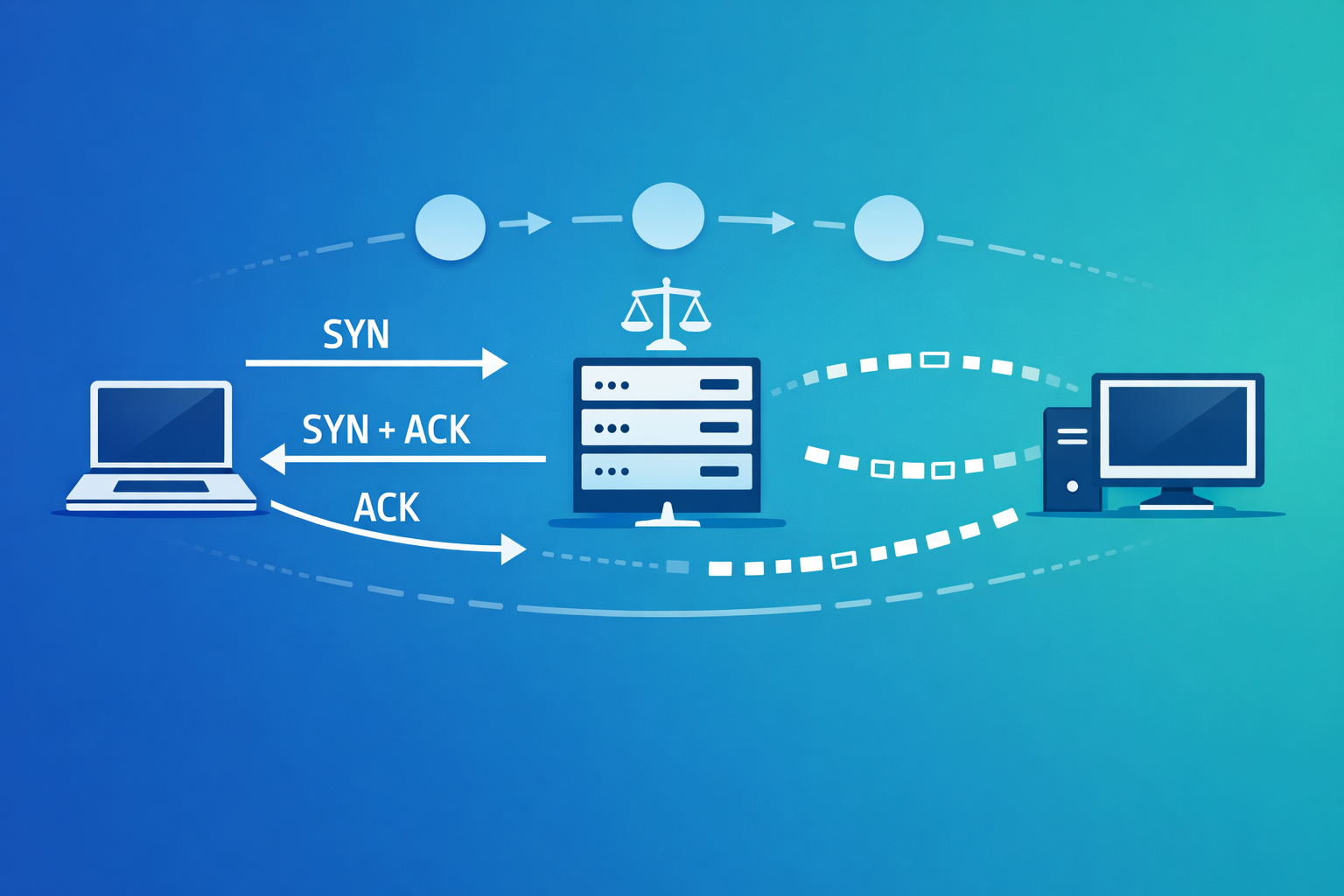
I recently ran into an issue where connections were mysteriously dropping after periods of inactivity. Debugging it required tracing TCP packets through NAT Gateways and Load Balancers, understanding how each component handles idle connections, and figuring out why keep-alive wasn’t working as expected. That investigation prompted me to write (or prompt) this post.
We’ll take a deep dive into the TCP protocol - understanding its fundamentals, exploring TCP options, and then following a TCP packet’s journey through real-world networking components like NAT Gateways and Network Load Balancers.
TCP Basics
TCP (Transmission Control Protocol) is a connection-oriented, reliable transport layer protocol. Before any data exchange happens, TCP establishes a connection using the famous three-way handshake.
TCP Header Structure
 0                   1                   2                   3
 0 1 2 3 4 5 6 7 8 9 0 1 2 3 4 5 6 7 8 9 0 1 2 3 4 5 6 7 8 9 0 1
+-+-+-+-+-+-+-+-+-+-+-+-+-+-+-+-+-+-+-+-+-+-+-+-+-+-+-+-+-+-+-+-+
|          Source Port          |       Destination Port        |
+-+-+-+-+-+-+-+-+-+-+-+-+-+-+-+-+-+-+-+-+-+-+-+-+-+-+-+-+-+-+-+-+
|                        Sequence Number                        |
+-+-+-+-+-+-+-+-+-+-+-+-+-+-+-+-+-+-+-+-+-+-+-+-+-+-+-+-+-+-+-+-+
|                    Acknowledgment Number                      |
+-+-+-+-+-+-+-+-+-+-+-+-+-+-+-+-+-+-+-+-+-+-+-+-+-+-+-+-+-+-+-+-+
|  Data |       |C|E|U|A|P|R|S|F|                               |
| Offset| Rsrvd |W|C|R|C|S|S|Y|I|            Window             |
|       |       |R|E|G|K|H|T|N|N|                               |
+-+-+-+-+-+-+-+-+-+-+-+-+-+-+-+-+-+-+-+-+-+-+-+-+-+-+-+-+-+-+-+-+
|           Checksum            |         Urgent Pointer        |
+-+-+-+-+-+-+-+-+-+-+-+-+-+-+-+-+-+-+-+-+-+-+-+-+-+-+-+-+-+-+-+-+
|                    Options                    |    Padding    |
+-+-+-+-+-+-+-+-+-+-+-+-+-+-+-+-+-+-+-+-+-+-+-+-+-+-+-+-+-+-+-+-+
|                             Data                              |
+-+-+-+-+-+-+-+-+-+-+-+-+-+-+-+-+-+-+-+-+-+-+-+-+-+-+-+-+-+-+-+-+
Key fields:
- Source/Destination Port: 16-bit port numbers identifying the endpoints
- Sequence Number: 32-bit number used to track data bytes sent
- Acknowledgment Number: 32-bit number indicating the next expected byte
- Data Offset: 4-bit field indicating where the data begins (header length)
- Flags: Control bits (SYN, ACK, FIN, RST, PSH, URG, ECE, CWR)
- Window: 16-bit field for flow control (receiver’s buffer size). See Flow Control section below.
- Checksum: 16-bit checksum for error detection
- Options: Variable length field for additional features
Three-Way Handshake
Connection Termination (Four-Way Handshake)
Flow Control using Window Field
The Window field is TCP’s mechanism for flow control - it prevents a fast sender from overwhelming a slow receiver. The receiver advertises how much buffer space it has available, and the sender must respect this limit.
How it works:
- The receiver maintains a receive buffer to hold incoming data before the application reads it
- In every ACK packet, the receiver advertises its current available buffer space in the Window field
- The sender tracks this “receive window” (rwnd) and never sends more unacknowledged data than rwnd allows
- As the application reads data, buffer space frees up, and the receiver advertises a larger window
Example Flow:
Zero Window and Window Probes:
When the receiver’s buffer is full, it advertises Window=0. The sender enters a “persist” state and periodically sends 1-byte “window probe” packets to check if the window has opened up. This prevents deadlock where the receiver’s window update ACK gets lost.
# Check for zero window situations
ss -ti | grep -i "rcv_space"
TCP Options
TCP options extend the protocol’s capabilities beyond the basic header. They’re negotiated during the handshake and can significantly impact performance.
Maximum Segment Size (MSS) - Option Kind 2
MSS defines the largest segment of data that TCP will send. It’s typically set to MTU - 40 bytes (20 bytes IP header + 20 bytes TCP header).
+--------+--------+---------+---------+
|00000010|00000100|   MSS Value       |
+--------+--------+---------+---------+
 Kind=2   Len=4    (16 bits)
Example: For a 1500 byte MTU, MSS = 1500 - 40 = 1460 bytes
Window Scale (WSCALE) - Option Kind 3
The original TCP window field is 16 bits, limiting the window to 65,535 bytes. Window scaling extends this by specifying a shift count (0-14), allowing windows up to 1 GB.
+--------+--------+--------+
|00000011|00000011| shift  |
+--------+--------+--------+
 Kind=3   Len=3    (0-14)
Effective window = Window field × 2^(shift count)
Selective Acknowledgment (SACK) - Option Kind 4 & 5
Without SACK, TCP uses cumulative acknowledgments - the receiver can only acknowledge the highest contiguous byte received. If packets arrive out of order or some are lost, the sender has no way to know which specific packets made it through. This leads to unnecessary retransmissions.
SACK solves this by allowing the receiver to report exactly which non-contiguous blocks of data it has received, so the sender can retransmit only the missing segments.
SACK Permitted (Kind 4): Sent during handshake to indicate SACK support
+--------+--------+
|00000100|00000010|
+--------+--------+
 Kind=4   Len=2
SACK Option (Kind 5): Contains the actual SACK blocks. Each block specifies a range of bytes [Left Edge, Right Edge) that the receiver has successfully received.
+--------+--------+
|00000101| Length |
+--------+--------+--------+--------+
|      Left Edge of 1st Block       |  (first byte of received block)
+--------+--------+--------+--------+
|      Right Edge of 1st Block      |  (byte AFTER last byte of block)
+--------+--------+--------+--------+
|              ...                  |
+--------+--------+--------+--------+
Detailed Example:
Let’s say the sender transmits 5 segments, each 1000 bytes:
| Segment | Sequence Range | Status |
|---|---|---|
| 1 | 1000-1999 | ✓ Received |
| 2 | 2000-2999 | ✓ Received |
| 3 | 3000-3999 | ✗ Lost |
| 4 | 4000-4999 | ✓ Received |
| 5 | 5000-5999 | ✓ Received |
Missing: 3000-3999 Receiver-->>Sender: ACK=3000, SACK=[4000-6000] Note over Sender: Cumulative ACK says "need 3000"
SACK says "but I have 4000-5999"
Only segment 3 is missing! Sender->>Receiver: Segment 3 (seq=3000, 1000 bytes) RETRANSMIT Receiver-->>Sender: ACK=6000 Note over Receiver: All data received!
What the receiver sends:
ACK = 3000: “I’ve received all bytes up to 2999, expecting byte 3000 next” (cumulative ACK)SACK = [4000-6000]: “I also have bytes 4000-5999” (the Right Edge is exclusive, so 6000 means up to byte 5999)
Without SACK (Go-Back-N behavior): The sender would only know that byte 3000 is missing. After timeout or duplicate ACKs, it might retransmit segments 3, 4, AND 5 - wasting bandwidth since 4 and 5 were already received.
Multiple SACK Blocks:
If multiple gaps exist, the receiver reports multiple SACK blocks:
Received: [1000-2000), [4000-5000), [7000-9000)
Missing:  [2000-4000), [5000-7000)

ACK = 2000
SACK Blocks:
  Block 1: [4000-5000)
  Block 2: [7000-9000)
TCP allows up to 4 SACK blocks per packet (limited by option space). The most recent/important blocks are listed first.
Timestamps (TSopt) - Option Kind 8
Timestamps serve two purposes:
- RTTM (Round-Trip Time Measurement): More accurate RTT calculation
- PAWS (Protection Against Wrapped Sequences): Prevents old duplicate segments from being accepted
+--------+--------+--------+--------+--------+--------+
|00001000|00001010|   TSval (4 bytes)  |  TSecr (4 bytes) |
+--------+--------+--------+--------+--------+--------+
 Kind=8   Len=10
- TSval: Timestamp value (sender’s current timestamp)
- TSecr: Timestamp echo reply (echoes the received TSval)
SACK in Practice
You can observe SACK in action using tcpdump:
# Capture packets and look for SACK options
tcpdump -i eth0 -nn -v 'tcp' | grep -i sack

# Example output showing SACK blocks:
# IP 10.0.1.5.443 > 10.0.2.10.52000: Flags [.], ack 3000, win 65535,
#   options [sack 1 {4000:6000}], length 0
Check if SACK is enabled on your system:
# Linux - SACK is enabled by default
cat /proc/sys/net/ipv4/tcp_sack
1

# To disable (not recommended):
sysctl -w net.ipv4.tcp_sack=0
TCP Keep-Alive
TCP keep-alive is a mechanism to detect dead connections. When enabled, the TCP stack sends probe packets after a period of inactivity.
Default Linux settings:
# Time before first probe (default: 7200 seconds = 2 hours)
$ cat /proc/sys/net/ipv4/tcp_keepalive_time
7200

# Interval between probes (default: 75 seconds)
$ cat /proc/sys/net/ipv4/tcp_keepalive_intvl
75

# Number of probes before declaring connection dead (default: 9)
$ cat /proc/sys/net/ipv4/tcp_keepalive_probes
9
Keep-alive probe packet characteristics:
- Sequence number = last ACKed sequence - 1
- No data payload
- Expects an ACK in response
TCP RST (Reset)
RST packets immediately terminate a connection. Common scenarios:
- Connection to a closed port
- Receiving data on a half-closed connection
- Firewall/middlebox intervention
- Application crash without proper connection teardown
RST packets:
- Don’t require acknowledgment
- Are not retransmitted
- Immediately release connection resources
Journey of a TCP Packet: Client → NAT Gateway → NLB → Server
Now let’s trace a TCP packet through a typical cloud architecture. We’ll follow a packet from a client in a private subnet, through a NAT Gateway, to a server behind a Network Load Balancer.
Architecture Overview
10.0.1.5"] end subgraph PublicSubnet["Public Subnet"] NAT["NAT Gateway
Private: 10.0.2.10
EIP: 52.x.x.x"] end end subgraph Internet["Internet"] Router["Internet Routers"] end subgraph TargetVPC["Target VPC / Region"] NLB["Network Load Balancer
203.0.113.50"] Server["Server
172.16.0.5"] end Client -->|"1. SYN packet
Src: 10.0.1.5:49152
Dst: 203.0.113.50:443
TTL: 64"| NAT NAT -->|"2. SNAT applied
Src: 52.x.x.x:32768
Dst: 203.0.113.50:443
TTL: 63"| Router Router -->|"3. Routed
TTL: 55-62"| NLB NLB -->|"4. Forwarded to target
Dst: 172.16.0.5:443
TTL: ~54"| Server classDef vpc fill:#e1f5fe,stroke:#01579b classDef subnet fill:#fff3e0,stroke:#e65100 classDef component fill:#f3e5f5,stroke:#7b1fa2 classDef internet fill:#e8f5e9,stroke:#2e7d32 class VPC vpc class PrivateSubnet,PublicSubnet subnet class Client,NAT,NLB,Server component class Internet,Router internet
Packet Transformation at Each Hop
Let’s trace a SYN packet initiating a connection to port 443:
Step 1: Client sends SYN
IP Header:
  Source IP:      10.0.1.5
  Destination IP: 203.0.113.50
  TTL:            64
  Protocol:       TCP

TCP Header:
  Source Port:    49152
  Destination:    443
  Flags:          SYN
  Seq:            1000
Step 2: NAT Gateway performs SNAT
The NAT Gateway translates the source IP and port, maintaining a connection tracking table.
NAT Gateway Connection Table:
┌──────────────────────────────────────────────────────────────────┐
│ Internal: 10.0.1.5:49152 ←→ External: 52.x.x.x:32768            │
│ Destination: 203.0.113.50:443                                    │
└──────────────────────────────────────────────────────────────────┘

Outgoing Packet:
IP Header:
  Source IP:      52.x.x.x (NAT Gateway's EIP)
  Destination IP: 203.0.113.50
  TTL:            63 (decremented by 1)
  Protocol:       TCP

TCP Header:
  Source Port:    32768 (translated)
  Destination:    443
  Flags:          SYN
  Seq:            1000 (unchanged)
Step 3: NLB receives and forwards
Unlike Application Load Balancers (ALB), Network Load Balancers do NOT terminate the TCP connection. NLB operates at Layer 4 and acts as a pass-through - it simply rewrites packet headers and forwards them. The TCP connection is established directly between the client and the target server (through NLB).
Key differences:
- NLB: TCP handshake happens between client and server. NLB just forwards packets. Sequence numbers, window sizes, TCP options all pass through unchanged.
- ALB: Terminates client TCP connection, creates new connection to server. Two independent TCP sessions.
Client IP Preservation:
For instance targets in the same VPC, NLB preserves the client IP by default:
IP Header:
  Source IP:      52.x.x.x (original client IP preserved)
  Destination IP: 172.16.0.5
  TTL:            62
  Protocol:       TCP

TCP Header:
  Source Port:    32768 (original port preserved)
  Destination:    443
  Flags:          SYN
  Seq:            1000 (unchanged - pass-through!)
For IP targets (especially cross-VPC or cross-region), NLB performs SNAT:
IP Header:
  Source IP:      NLB's internal IP (SNAT applied)
  Destination IP: 172.16.0.5 (target server)
  TTL:            62 (decremented)
  Protocol:       TCP

TCP Header:
  Source Port:    Ephemeral port (translated)
  Destination:    443
  Flags:          SYN
  Seq:            1000 (unchanged)
When SNAT is used and you need the original client IP, enable Proxy Protocol v2 on the target group. NLB will prepend client connection info to the TCP stream, which your application must parse.
TTL Changes Through the Path
TTL (Time To Live) decrements at each Layer 3 hop:
| Hop | Device | TTL |
|---|---|---|
| 0 | Client | 64 |
| 1 | NAT Gateway | 63 |
| 2 | Internet routers | 62-55 (varies) |
| 3 | NLB | ~54 |
| 4 | Server | ~53 |
How Middleboxes Handle TCP
NAT Gateway
What it does:
- Translates private IPs to public IPs (SNAT for outbound traffic)
- Maintains connection tracking tables
- Allows return traffic based on established connections
TCP Keep-Alive handling:
- NAT Gateways have idle timeout (typically 350 seconds for TCP)
- If no traffic flows for this duration, the NAT mapping is removed
- Keep-alive probes reset this timer
- If keep-alive interval > NAT timeout, connections may break silently
(350s timeout exceeded) C->>NAT: Keep-alive probe Note over NAT: No mapping found!
Packet dropped C->>NAT: Keep-alive probe (retry) Note over NAT: Dropped again Note over C: Connection times out
after multiple failed probes
RST packet handling:
- RST packets are forwarded if they match an existing connection
- RST from unknown connections are typically dropped
- Some NAT implementations send RST back to the sender
Timeouts:
- TCP established: 350 seconds (AWS NAT Gateway)
- TCP transitory (SYN_SENT, FIN_WAIT): 60 seconds
Network Load Balancer (NLB)
What it does:
- Distributes incoming TCP connections across multiple targets
- Operates at Layer 4 (transport layer) - does NOT terminate TCP connections
- Acts as a pass-through: TCP connection is between client and target, NLB just forwards packets
- Can preserve client IP addresses (default for instance targets)
- Performs health checks on targets
TCP Keep-Alive handling: Even though NLB is pass-through, it maintains connection tracking state to route packets correctly. This tracking has an idle timeout (default 350 seconds, configurable).
What happens when NLB idle timeout expires:
- NLB removes the connection tracking entry (forgets the connection)
- NLB does NOT send RST or FIN to either side
- Both client and server still think the connection is alive
- When the next packet arrives, NLB doesn’t know where to route it
- Packet is dropped (or NLB sends RST back)
- Connection becomes “orphaned” - eventually times out on both ends
NLB forgets this connection Note over C,S: Client and Server still think
connection is alive! C->>NLB: Keep-alive probe Note over NLB: Unknown connection!
No tracking entry found NLB--xC: RST (or silent drop) Note over C: Connection error! Note over S: Eventually times out
waiting for client
Recommendation: Set application keep-alive < NLB idle timeout

Example for a 350s NLB timeout:
- Set tcp_keepalive_time = 60 seconds
- Set tcp_keepalive_intvl = 10 seconds
- Set tcp_keepalive_probes = 6

This ensures keep-alive probes flow through NLB regularly,
resetting the idle timer before it expires.
RST packet handling:
- NLB forwards RST packets to the appropriate target
- If a target becomes unhealthy, NLB may send RST to existing connections
- Cross-zone load balancing affects RST routing
Connection draining:
- When a target is deregistered, NLB allows existing connections to complete
- New connections are not sent to the deregistering target
- After deregistration delay, remaining connections receive RST
Health checks:
- NLB performs TCP health checks (SYN → SYN-ACK → RST)
- Failed health checks mark target as unhealthy
- Unhealthy targets don’t receive new connections
Timeout Comparison
| Component | TCP Idle Timeout | Keep-Alive Consideration |
|---|---|---|
| Linux default | 7200s (2 hours) | Too long for most middleboxes |
| AWS NAT Gateway | 350s | Set keep-alive < 350s |
| AWS NLB | 350s (configurable) | Match to your NLB setting |
| AWS ALB | 60s (configurable) | Much shorter, be careful |
Practical Recommendations
Always configure TCP keep-alive for long-lived connections through NAT/LB:
# Recommended settings for cloud environments
sysctl -w net.ipv4.tcp_keepalive_time=60
sysctl -w net.ipv4.tcp_keepalive_intvl=10
sysctl -w net.ipv4.tcp_keepalive_probes=6
Enable SACK for better performance over lossy networks (usually enabled by default)
Use appropriate MSS to avoid fragmentation:
- Standard Ethernet: MSS = 1460
- Jumbo frames: MSS = 8960
- VPN/tunnels: Account for encapsulation overhead
Monitor for RST packets - unexpected RSTs often indicate:
- Firewall issues
- NAT table exhaustion
- Application crashes
- Middlebox timeouts
Debugging TCP Issues
Useful commands for TCP debugging:
# View TCP connection states
ss -tan

# Monitor TCP traffic
tcpdump -i eth0 'tcp port 443' -nn

# Check TCP statistics
netstat -s | grep -i tcp

# View connection tracking (on NAT devices)
conntrack -L

# Check TCP options being used
tcpdump -i eth0 -nn -v 'tcp[tcpflags] & tcp-syn != 0'
Conclusion
Understanding TCP at this level helps debug complex networking issues, especially in cloud environments where multiple middleboxes sit between your client and server. The key takeaways:
- TCP options like SACK, Window Scaling, and Timestamps significantly improve performance
- NAT Gateways and Load Balancers have idle timeouts that can silently break connections
- Keep-alive settings should be tuned based on your infrastructure’s timeout values
- TTL decrements at each hop, which can help trace packet paths
- RST packets are your friend for debugging - they tell you when something went wrong
When troubleshooting TCP issues in cloud environments, always consider the middleboxes in the path and their respective timeout configurations.